Prerequisites
Before you begin, make sure you have the following installed:
Step 1: Fork the Project
Start by creating your own copy of the repository on GitHub.
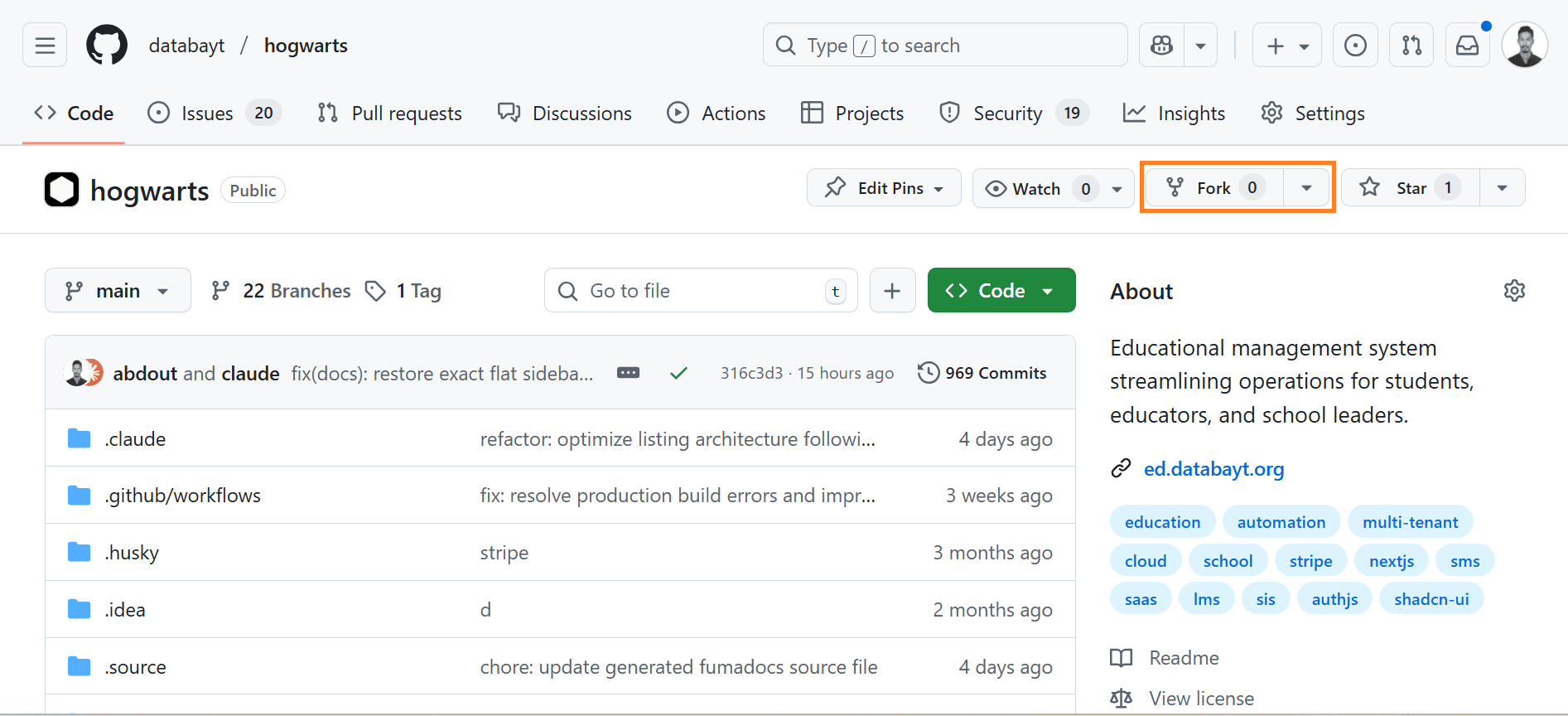
- Navigate to Hogwarts repository
- Click the "Fork" button in the top-right corner
Step 2: Create Your Fork
Ensure the repository name is available and create your fork.
- Verify the repository name is available
- Keep the default settings (unless you need to change them)
- Click "Create fork" to complete the process

Step 3: Open VS Code
Launch your code editor and prepare to clone the repository.
- Open a new window in VS Code
- Click on the Git icon in the left sidebar
- Click Clone
- Paste your repository URL or connect with GitHub from top search bar

Step 4: Clone from GitHub
Get your forked repository URL and clone it locally.
- Go back to your forked repository on GitHub
- Click the green "Code" button
- Copy the HTTPS URL to your clipboard
- Paste it in your editor's clone dialog

Step 5: Choose Local Directory
Select where you want to store the project on your computer.
- Choose a directory for your projects (e.g.,
~/Documents/projects/) - Create a new folder if needed
- Select the location and confirm

Step 6: Open in Editor
Open the cloned project in your code editor.
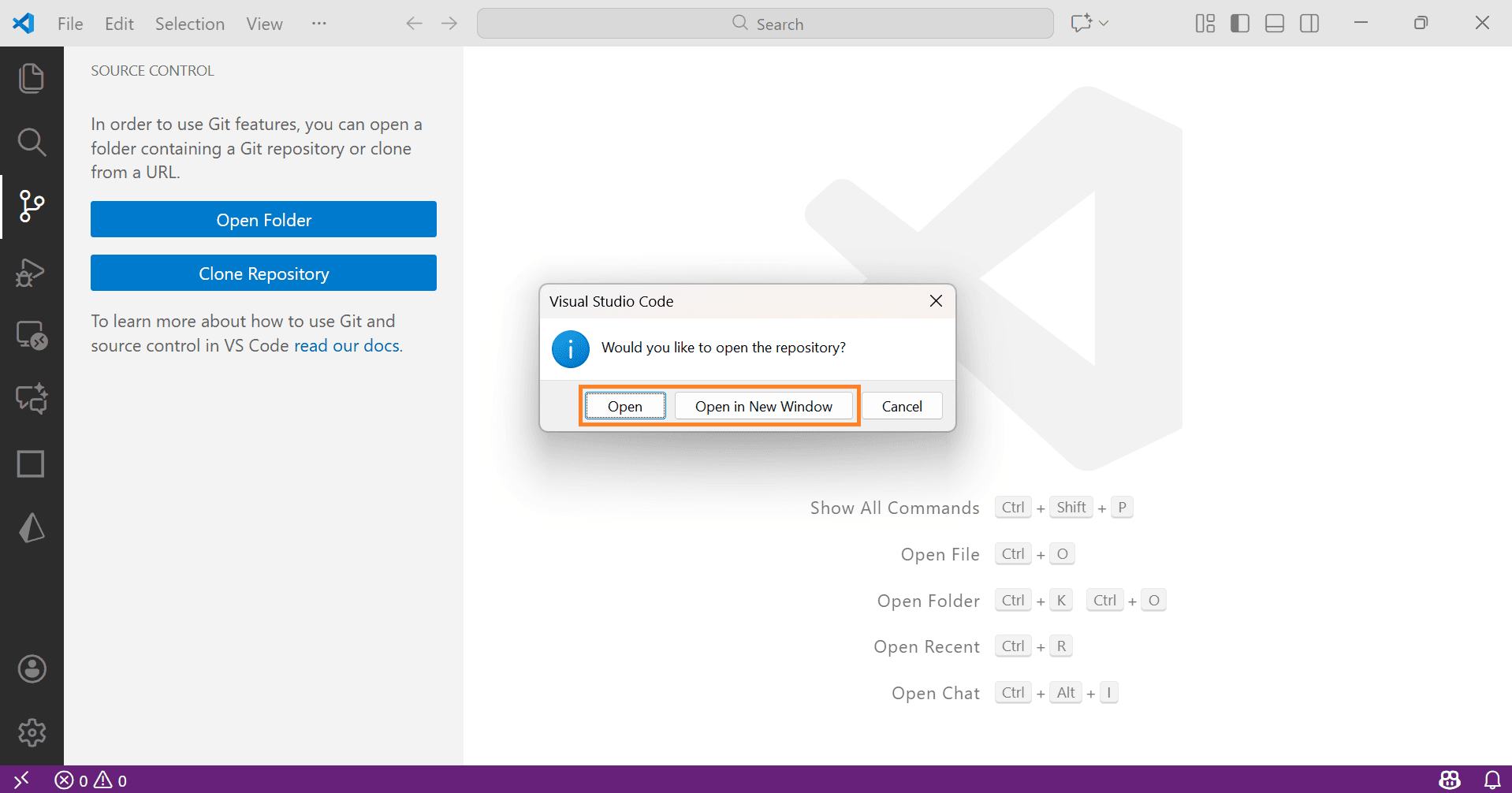
- Wait for the cloning process to complete
- Click "Open" when prompted
- Your project is now ready for development
Step 7: Install Dependencies
Use pnpm to install all required dependencies.
- Open the integrated terminal (
Ctrl/Cmd + ~) - Run the install command:
pnpm install- Wait for installation to complete
Step 8: Set Up Environment
- Create
.envfile in the root folder - Paste the content from WhatsApp group
Step 9: Start Development Server
Launch the development server and see your app running.
- Run the development command:
pnpm dev- Wait for the server to start
- Open your browser to
http://localhost:3000